Über Lumiric Stage
Lumiric Stage
Turn MIDI files and live performances into visual content.
Lumiric Stage is a real-time MIDI visualization and music content creation tool designed for creators, pianists, educators, performers, and streamers.
Create piano videos, tutorials, livestreams, educational content, and cinematic performances using Magic Piano, a real-time Staff for visual learning, Floating Labels, camera support, customizable note visuals, original particle effects, and music-reactive Stages including Cinema.
This is not just a piano roll.
This is a stage.
Built for Music Content Creators
Most MIDI visualization workflows require multiple tools, video editing software, perspective correction, and manual synchronization between video and MIDI data.
The Content Creation panel brings camera setup, Magic Piano, and recording controls into one creative workspace.
Combine live MIDI or MIDI files with your camera, Magic Piano calibration, Falling Notes Video Sync, Floating Labels, real-time notation, visual effects, and recording tools. Build a complete visual identity for a performance, save it as a preset, and return to it whenever inspiration strikes.
Whether you want to teach, perform, stream, practice, or grow your music content, Lumiric Stage helps turn your playing into something people can see, follow, and remember.
Particle Effects and .mvfx Sharing
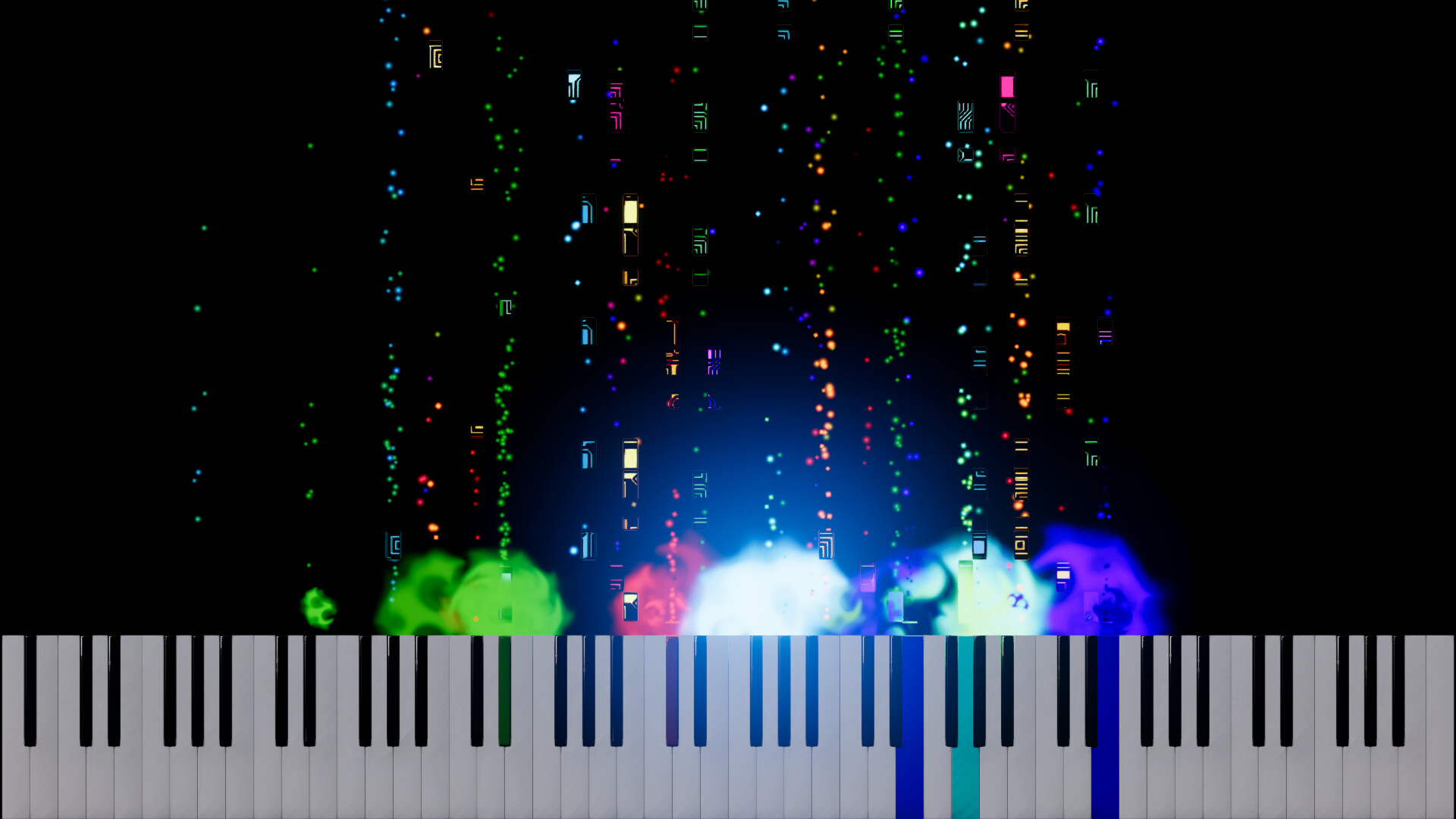
Create original note-reactive particle effects directly inside Lumiric Stage, then share them with the community as portable .mvfx files.
Start with an Official effect or create one of your own. Name it, duplicate it, adjust it while it plays, test it instantly, undo changes, or use Randomize to generate coherent effect ideas such as bursts, fountains, auras, smoke, rainfall, and swirling motion.
The particle editor gives you detailed control over:
- Spawn position, anchor, trigger, playback, amount, burst count, lifetime, speed, and size
- Shape, spread, thickness, angle, length, offset, rotation, and world scale
- Motion, orbit, rise, radial force, turbulence, gravity, ground collision, and bounce
- Trails, stretch rendering, maximum particle count, and animated flipbooks
- Life Color with start, middle, and end color stops plus fade behavior
- Pitch influence, allowing high and low notes to affect particle size and speed
- Custom PNG and JPG particle textures with browsing, preview, and live switching
Official effects and My Effects are kept separate, making it easy to browse built-in templates and your personal effect library.
Sharing is designed to be simple. Saving an effect creates a single .mvfx file in the Effects folder of your Lumiric Stage Home Folder (Documents/Lumiric Stage by default), ready to share. Importing the file restores the effect settings and installs its custom particle texture when one is included.
Your effect. Your texture. One portable file.
Magic Piano
Have you ever seen those "Magic Piano" videos where visual notes align with a real piano?
Creating that effect usually requires recording MIDI and video separately, aligning both sources, correcting perspective, synchronizing everything manually, and finishing the result in editing software.
In Lumiric Stage it takes seconds.
Place three calibration handles on your real piano: the lowest note, middle C (C4), and the highest note. Lumiric Stage uses these points to align visual effects directly with your camera view across different piano sizes and camera angles.
The alignment holds from wherever your camera is: overhead, off to the side, close on the keys, or tilted for a more dramatic shot. Frame the angle you want, drop the three handles, and play. Nothing has to be aligned again afterwards.
Fine-tune the result with piano size, perspective, keybed alignment, inclination, crop, opacity, rotation, scale, aspect guides, blend controls, and an optional FX mask. Keybed effects such as Fog and Saber Energy can follow the calibrated piano line.
Combined with Falling Notes Video Sync, notes can travel toward the piano and arrive when the video shows you pressing the key. Create tutorials, performances, and livestreams with synchronized falling-note visuals without rebuilding the effect later in post-production.
Floating Labels
Floating Labels display musical notation directly on the visual notes, making performances easier to follow, teach, and share.
Choose between International notation, Solfege, or Nashville numbers, then customize label size, position, text, background, opacity, colors, timing, fade behavior, and execution animation.
Label colors can be fixed or generated dynamically using modes such as Follow Note, Follow Piano, Complementary, or Analogous, helping your content remain readable and visually cohesive.
Used with Magic Piano, Floating Labels can turn a real piano performance into an educational video, tutorial, or livestream where viewers can see what is being played and understand the notes behind the music.
Music Learning
Music Learning brings Theory, Reading, and Practice together so creators, students, and educators can explore music as they play.
Theory lets you choose a key, scale, and notation system. Scale-aware visualization, degree-based coloring, chord recognition, chord functions, and out-of-scale feedback help reveal musical structure in real time.
Reading brings Key Labels, Floating Labels, chords, and the Staff into the performance. The scrolling Staff visualizes MIDI files and live input with treble and bass clefs, notes, rests, accidentals, barlines, and rhythmic values. See upcoming passages, select the MIDI channels you want to follow, adjust colors, show or hide rests, and choose how many measures appear on screen.
The Staff is made for entertainment, visual learning, and study. Its notation is generated in real time from MIDI or live performance and may not match a carefully prepared score. Use it to follow and explore music, not as a precise transcription or a substitute for professional notation software. We intend to improve its notation over time.
Practice offers two interactive modes for a connected MIDI keyboard. In Wait for note, MIDI-file playback pauses for each target note and continues when you play it. Challenge responds to your timing with hit and miss feedback. Adjust the approach and timing window to suit the session.
Note Coloring
Lumiric Stage lets you define how notes are colored across the entire performance.
Use MIDI Channel, individual Note, Velocity, Pitch Gradient, or Degree-based coloring when working with a selected key and scale. Each mode has its own editable palette, allowing every Stage to keep a distinct visual identity.
Degree coloring makes harmonic relationships easier to see by assigning colors according to each note's musical role inside the scale. This can be especially useful for tutorials, music theory explanations, improvisation practice, and educational videos.
Notes outside the selected scale can be visually separated, helping viewers identify them immediately.
Combined with Floating Labels and Music Learning, Note Coloring turns MIDI visualization into a clear educational language while still giving creators the freedom to build their own visual style.
Note Behaviour and Playback
The Stage panel's Note Behaviour controls let you shape how notes move through the scene.
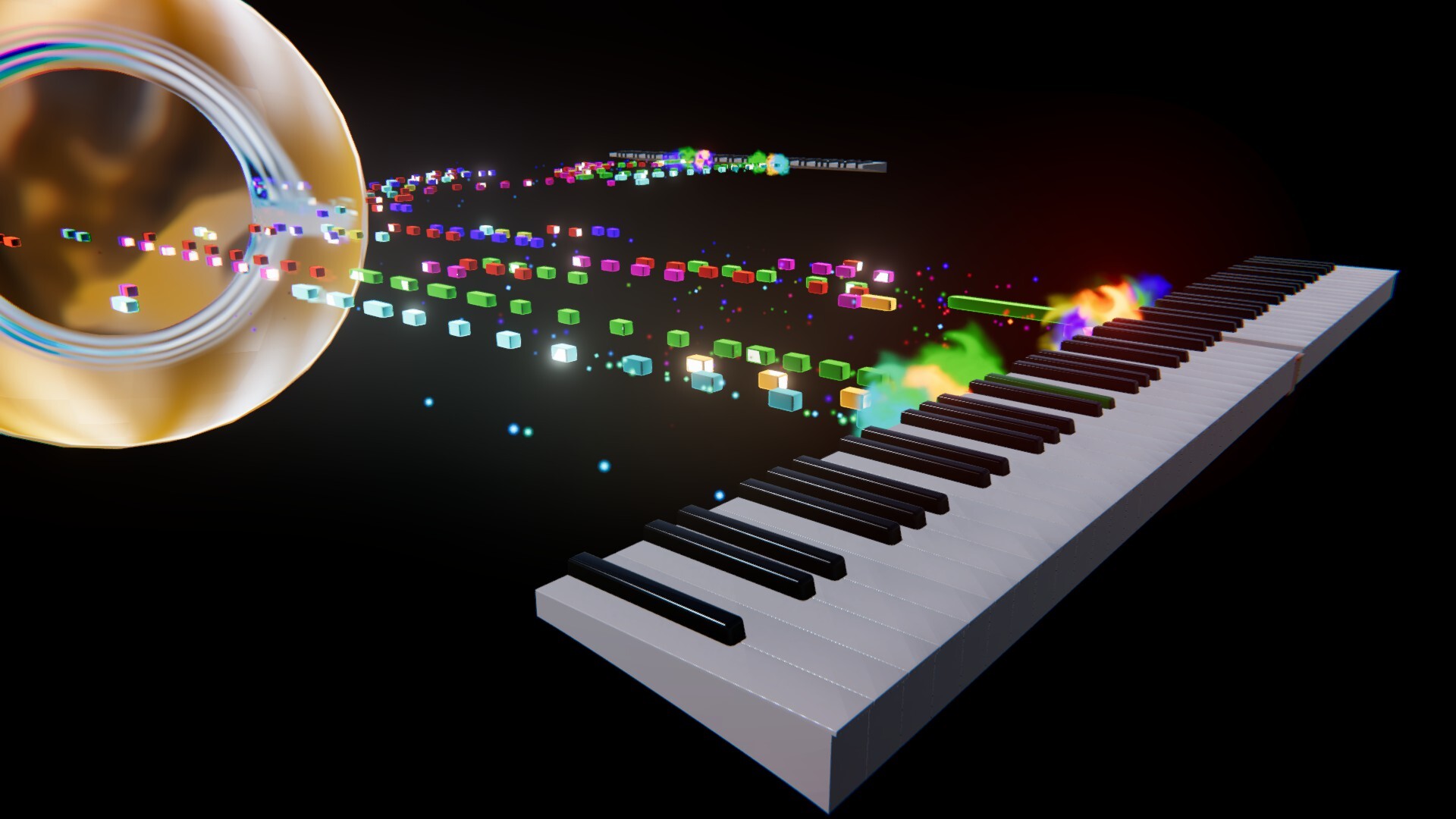
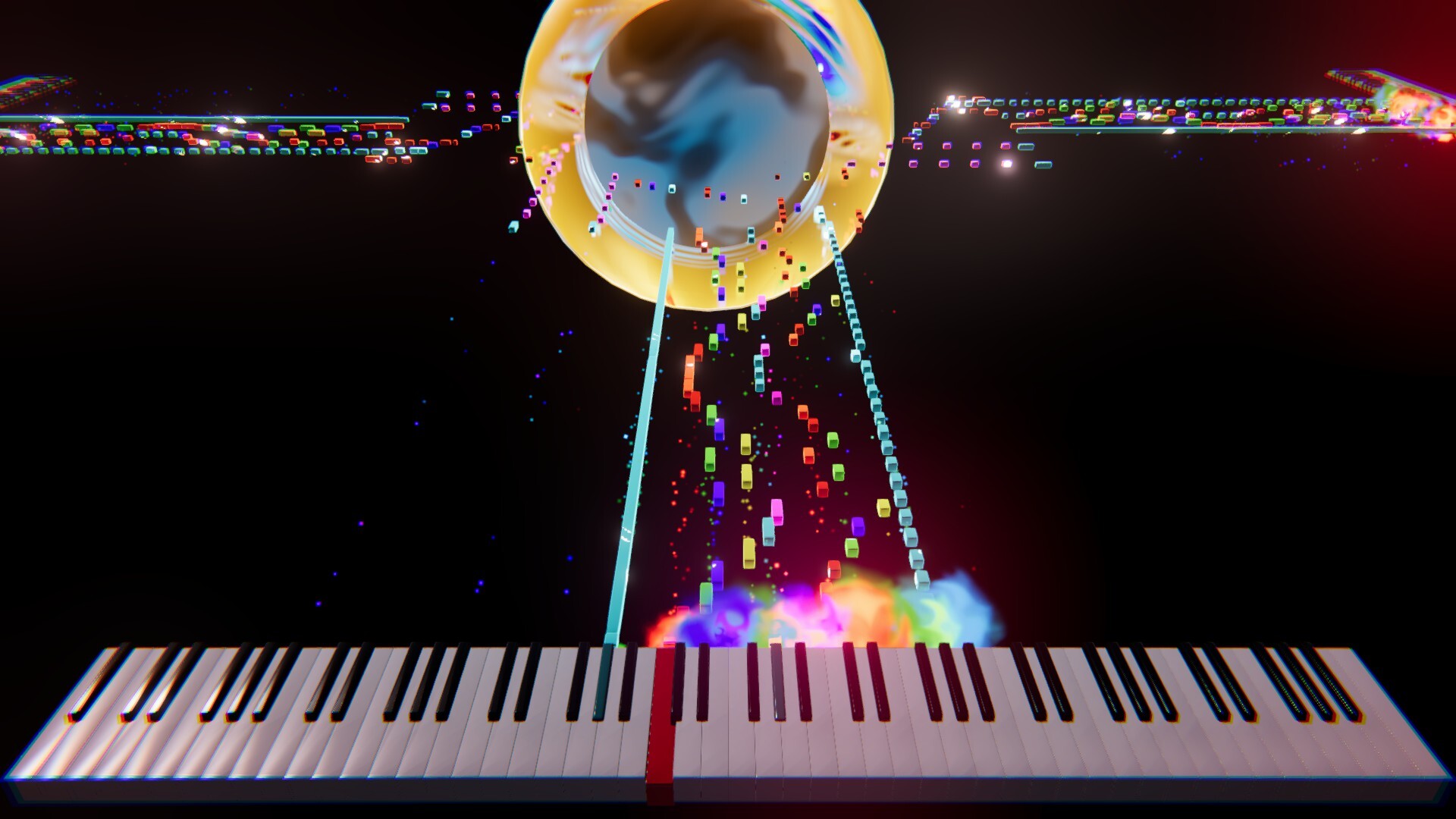
Choose Incoming ("Falling Notes") for tutorials and learning, or Outcoming Notes to send notes away from the instrument for a cinematic performance.
Path Angle rotates the note path through 360 degrees. Travel Time controls the journey, Note Size changes the visuals, and playback Speed lets you slow down or accelerate a MIDI file. Study difficult passages at a lower speed while Floating Labels reveal note names before they reach the piano.
MIDI Player
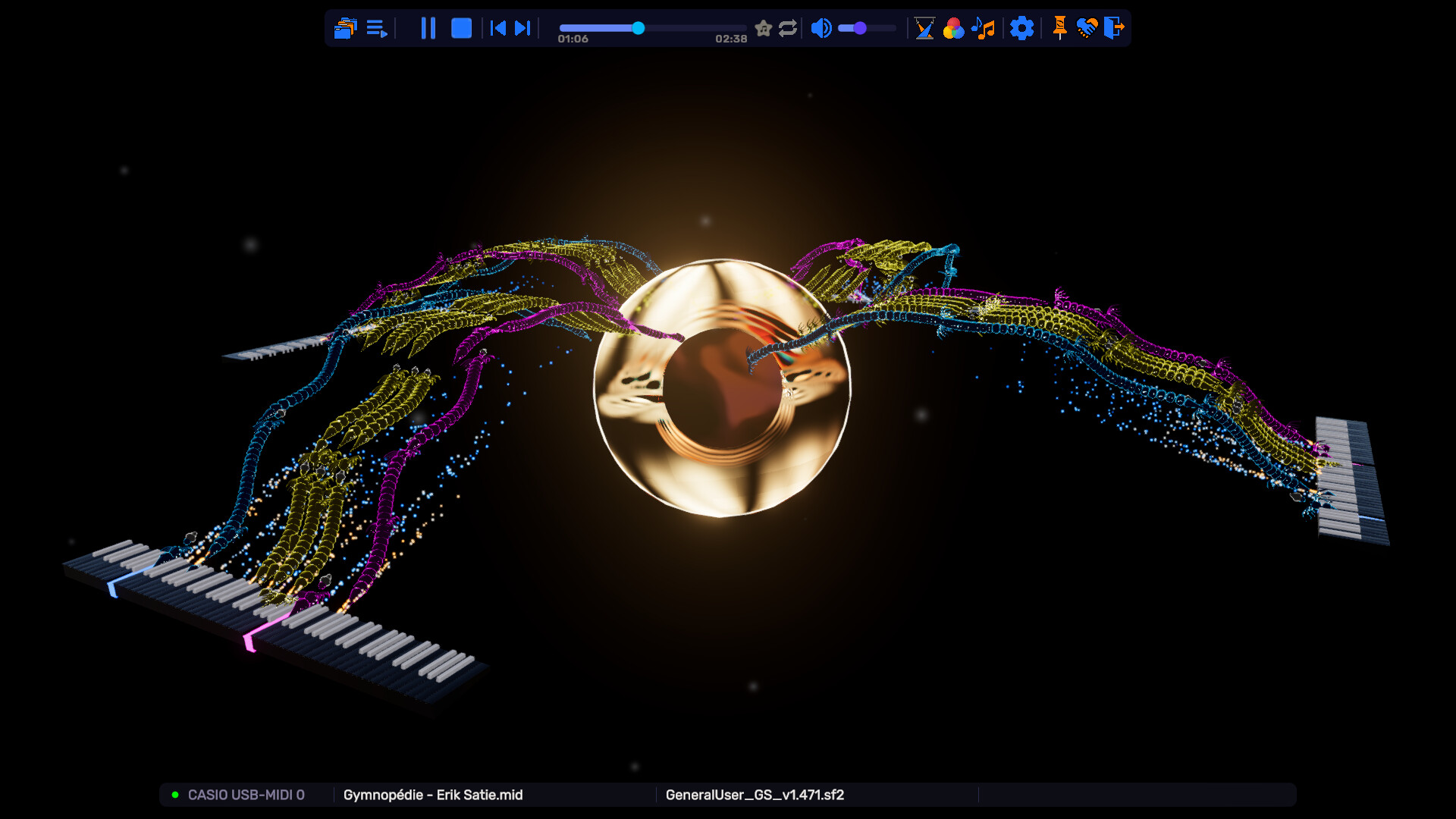
At its core, Lumiric Stage can also be used as a MIDI music player.
Load MIDI files and SoundFont (.sf2) files, listen to your music, and watch every performance become a visual scene in real time.
Every MIDI channel can have its own voice. Choose an instrument per channel from the voices the loaded SoundFont actually contains: a grand piano for the melody, an upright bass underneath, strings or a choir on the pad. Leave a channel on Auto and it follows whatever the MIDI file or your controller sends. Your choices stay with the session, and loading a different SoundFont returns every channel to Auto.
Connect a MIDI controller for live playing, choose your input device, or route MIDI output to compatible external hardware. Velocity normalization tools can preserve the natural response of your performance, compress its dynamic range, or define minimum and maximum velocity values for more consistent sound and visuals.
A gamepad can also be mapped to expressive MIDI controls including pitch bend, modulation, expression, pan, brightness, sustain, and octave shifting. Configure channels, pitch-bend ranges, and stick deadzones, with optional output to a connected physical MIDI instrument.
Use Lumiric Stage to create videos and livestreams, practice with visual feedback, or simply enjoy your favorite MIDI performances with custom instruments, colors, Stages, and effects.
Playlist and Presets
Build a collection of complete performances, not just a list of files.
When you add a song to Favorites, Lumiric Stage can preserve the MIDI file, SoundFont, Stage, visual preset, instruments, shapes, skins, particle effects, and channel configuration associated with it.
Each favorite can become its own performance setup: the music, sound, and visual identity stay together and can be recalled from the Playlist.
Create named visual Presets from your current look and switch between complete creative setups. The active preset is saved automatically as you work, allowing changes to remain with that setup without requiring a separate save action.
Build one preset for teaching, another for livestreaming, and another for cinematic performances, then move between them without rebuilding every visual choice.
Stages
Stages define the visual environment where your music comes to life.
Void is a clean, minimal Stage for learning, streaming, Magic Piano, Floating Labels, and the Staff. It keeps attention on the instrument and the music.
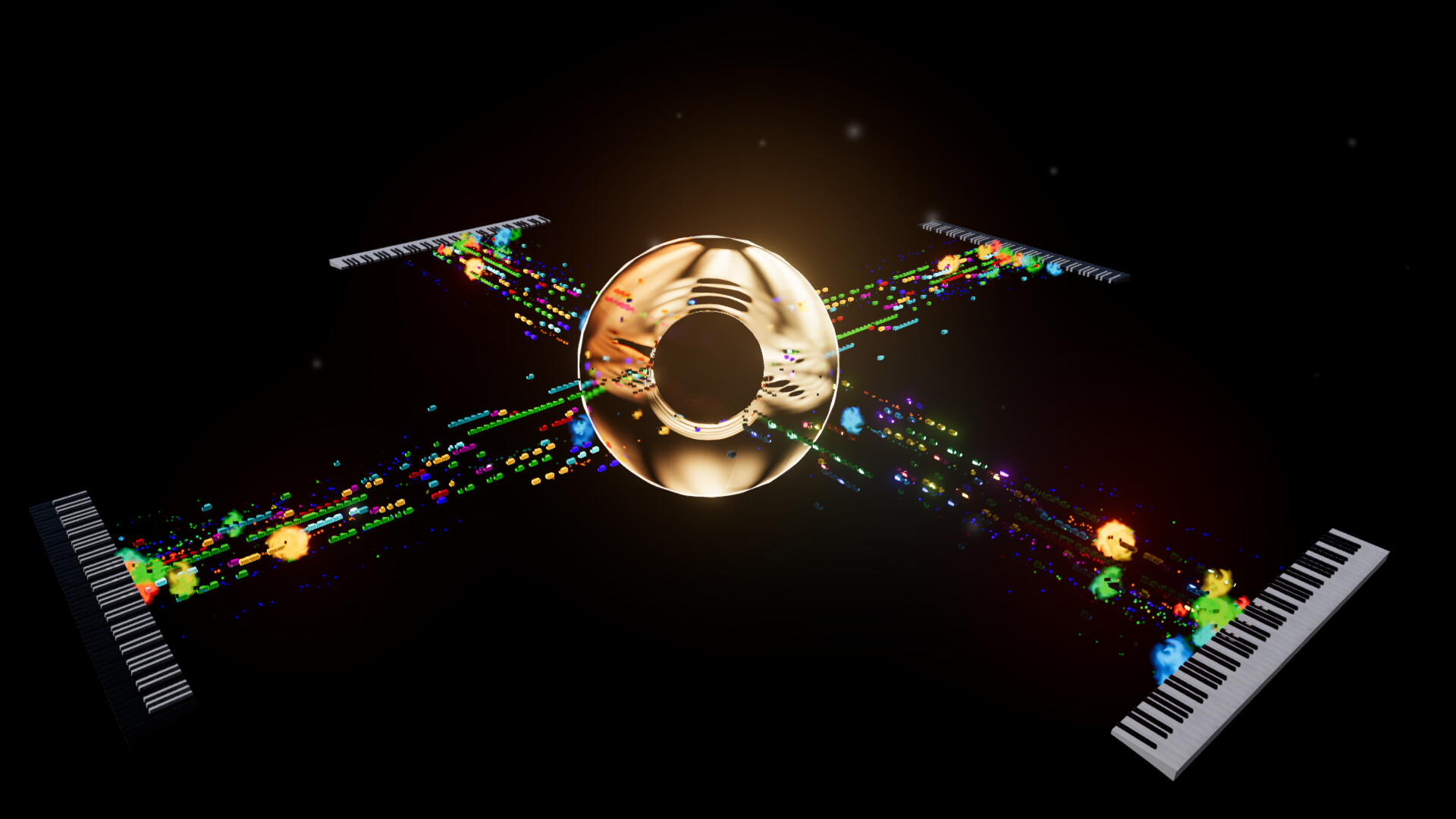
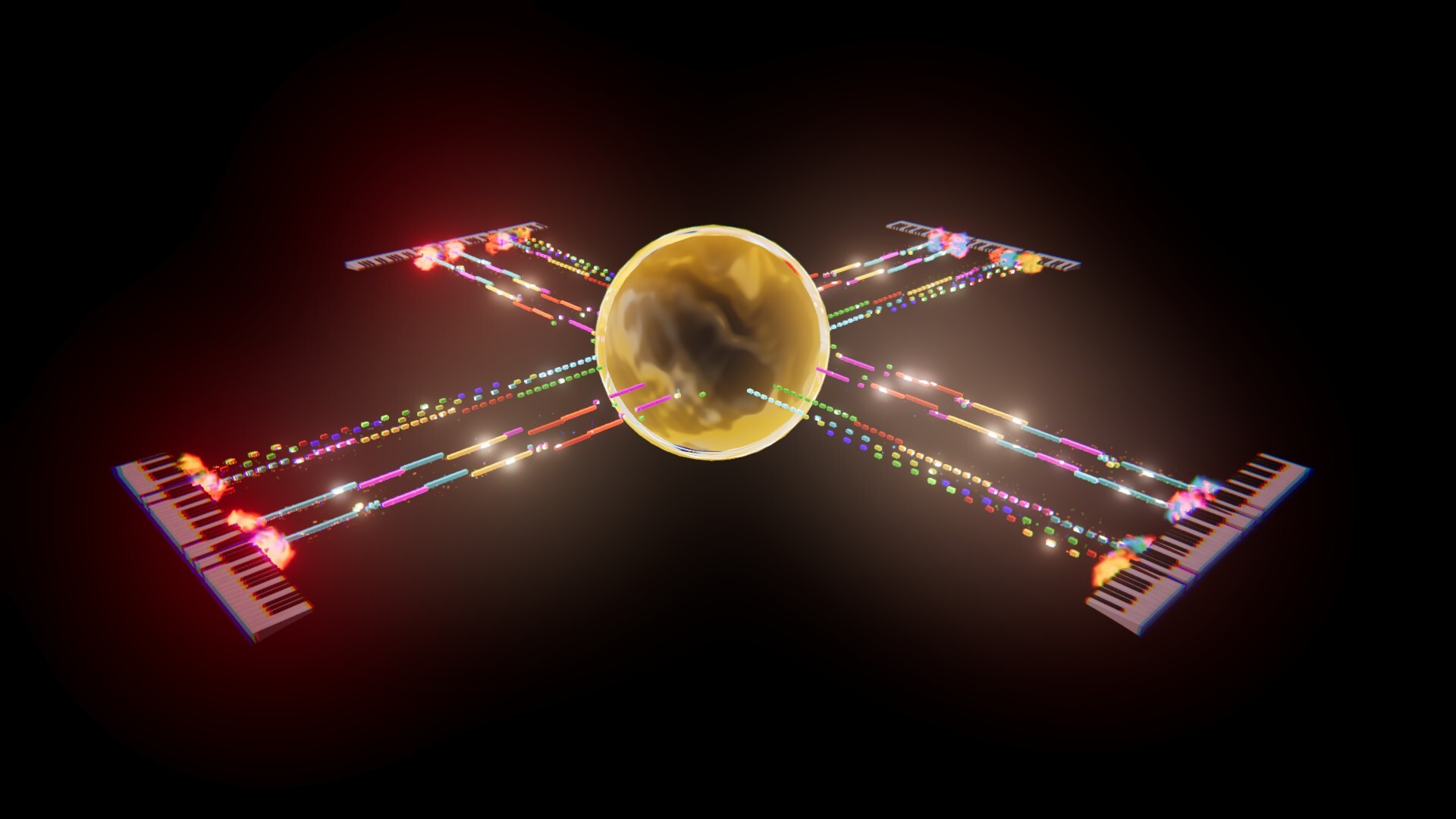
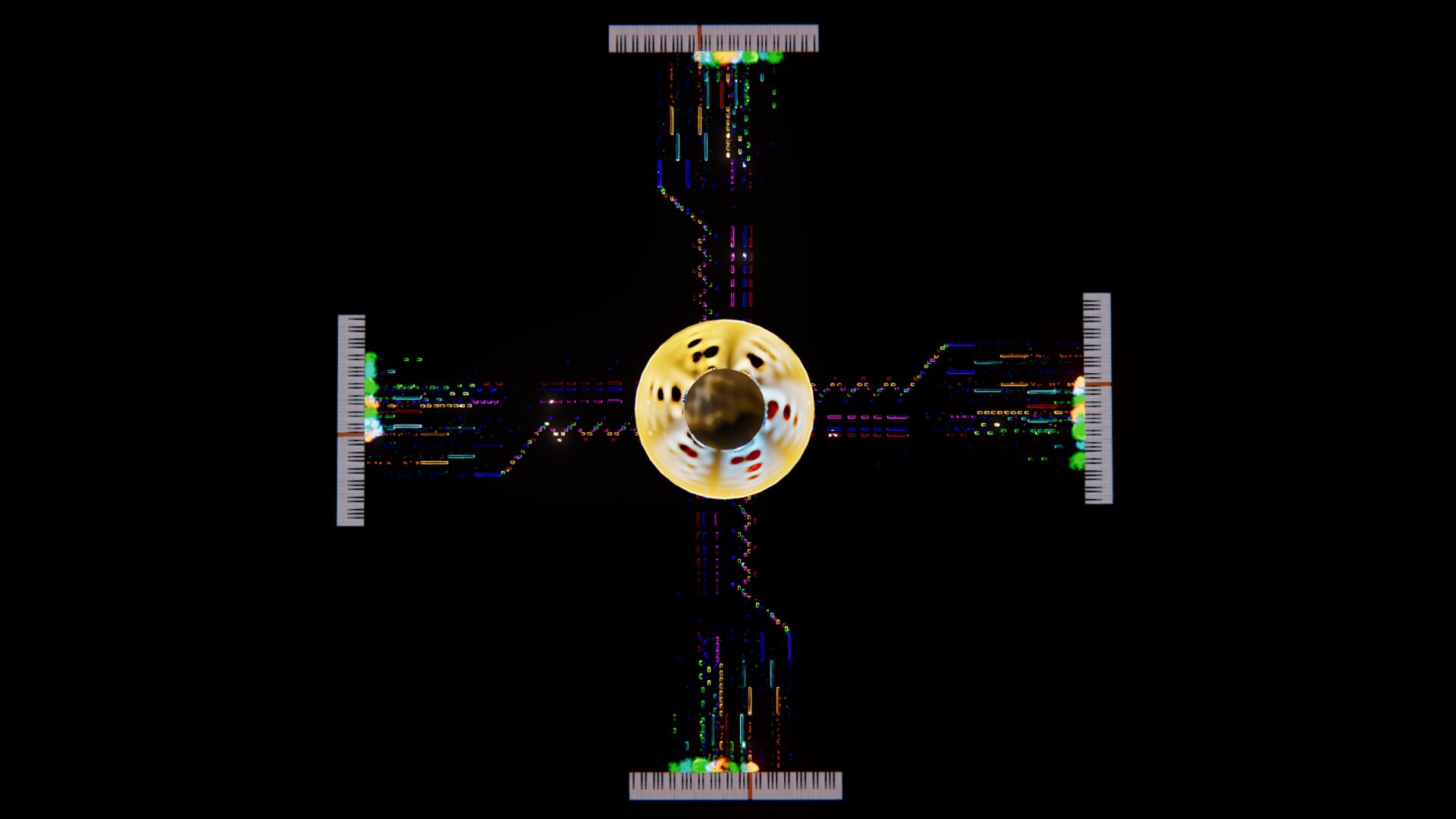
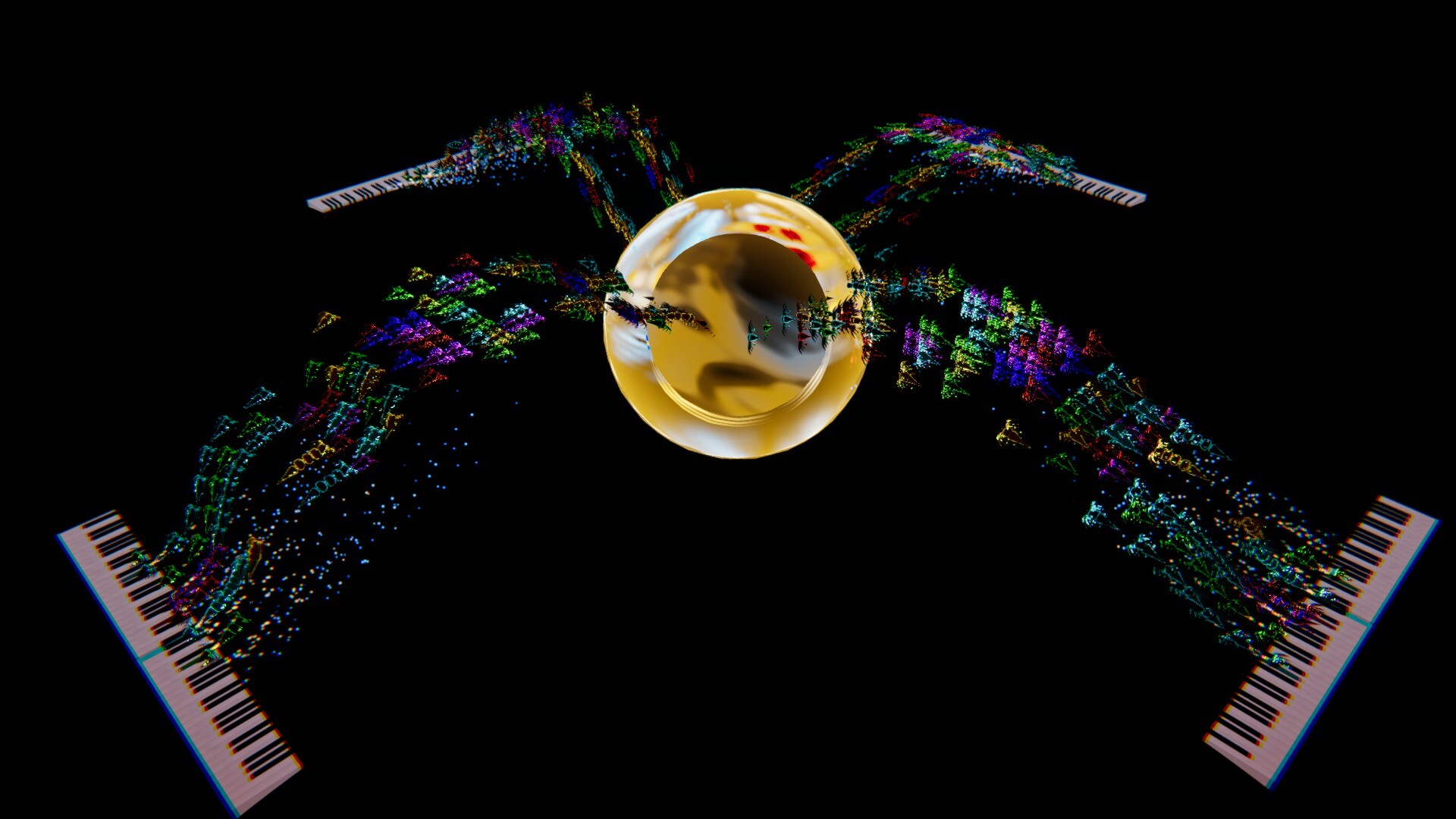
Singularity surrounds the performance with a black-hole-inspired core, a spherical star field, and an animated Lumiric Cosmo billboard. Use it for expressive performances and science-fiction visuals.
Cinema makes a large screen the heart of the Stage. Show your own image, animated GIF, or video behind the performance to create cinematic visuals, educational scenes, or branded content.
The Customize button in the Stage panel opens controls for the selected Stage when it has a customizable main element. In Cinema, choose or import screen media, adjust opacity and framing, set how the screen faces the camera, and control looping. Video playback also has restart and timeline controls.
On Stages that support multiple Players, add instruments, route MIDI channels, and give each Player its own shapes, skins, paths, and particle effects. Show or hide Stage elements and tailor the scene to the performance.
Use a clear setup for teaching and livestreams, or build a cinematic environment that makes your music part of the scene.
Post-Processing
Lumiric Stage includes a post-processing system that helps shape the final look and energy of your performance.
Use Vignette, Chromatic Aberration, Bloom, Lens Distortion, Panini Projection, Post Exposure flashes, Film Grain, Saturation, and other visual treatments.
Many effects can react to performance intensity. Keep an effect subtle during quiet passages and increase it as the music becomes stronger, with controls for idle values, peaks, thresholds, decay, and smoothing.
Create a clean educational image, a soft cinematic atmosphere, or an intense psychedelic reaction driven by the performance itself.
Recording and Export
Capture your performance without leaving the creative environment.
Record MIDI, video, or both, with an optional separate WAV of the audio alongside the video. Choose 720p, 1080p, 1440p, or 4K, 24, 30, or 60 FPS, a 16:9, 9:16, 4:5, or 1:1 output, and a High, Balanced, or Compact quality tier. Output Framing lets you zoom and reposition the recorded frame without touching the camera or disturbing the composition on screen.
Delivery presets set everything up for where the video is going. Choose Instagram Reels (9:16), Instagram Feed (4:5), Instagram Square (1:1), YouTube (16:9), or Master for editing, then record. Every value a preset touches remains yours to change afterwards.
Advanced Encoding opens the controls a streamer or video editor expects:
- H.264 or H.265 (HEVC), delivered as MP4, MOV, or MKV
- Constant quality, VBR, or CBR, with bitrate and quality level
- Encoder speed from Fastest to Slowest, using hardware acceleration, software encoding, or Auto
- Keyframe interval, B-frames, and limited or full color range
- Audio bitrate up to 320 kb/s and loudness normalization at -14, -16, or -18 LUFS, measured before it is applied so the music keeps its dynamics
- A/V offset and automatic sync correction
- A live estimate of resolution, frame rate, and file size per minute
Audio and picture stay together. Both are timed from the same clock, and the real sample rate of your audio device is measured during the take and corrected when the file is assembled, so a long performance ends as tightly synchronized as it started. Color is converted on the GPU in BT.709, keeping the saturated colors this app produces faithful in the final video.
Camera framing, delayed video, crop, opacity, rotation, scale, aspect guides, and blend controls help prepare the source before recording or streaming.
Camera lock and view controls help protect a finished composition, while refresh, restart, and optional auto-recovery tools make long sessions more reliable.
Captures are organized in the Captures folder of your configurable Lumiric Stage Home Folder (Documents/Lumiric Stage by default).
Customization
Shape the visual identity of every performance. Adjust note colors, shapes, skins, particle effects, paths, instruments, channels, Floating Labels, the Staff, cameras, post-processing, and playback behavior. Where available, use the Stage panel's Customize button to change the Stage's own main element.
Save complete looks as presets, attach them to favorite songs, and share original particle effects as portable .mvfx files.
Lumiric Stage lets you decide how music looks as well as how it sounds.
Current Focus
Lumiric Stage is focused on creator workflows, piano content, streaming, visual learning, real-time MIDI visualization, and expressive music-driven effects.
The goal is to make it easier for musicians and creators to produce content that is beautiful, understandable, personal, and ready to share.
Load your music.
Shape the visuals.
Create the performance.